

Did You Know You can Automatically Replace Characters Not Supported by SharePoint?
That’s right! Actually, it’s been a Sharegate feature for quite some time now, but many people don’t even know it exists. Which is why I’ve decided to dedicate this whole article to explaining how to get rid of the characters that are unsupported by SharePoint while migrating files and folders to SharePoint. Hopefully, this makes your life even easier.
Why Would You Want to Replace Characters during a SharePoint Migration?
Well, the answer to that is simple. Windows supports a bunch of special characters that are unsupported inside SharePoint. It doesn’t present a problem until you decide to get rid of your file shares, and move to SharePoint. There’s probably a couple of tools that can help you rename the files and folders correctly, but they add an extra step, not to mention an extra cost. With Sharegate, you can do it all at the same time, and it’s automatic – which means you can set it once and never worry about it again!
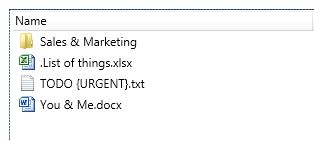
Here are a few examples of files and folders containing unsupported characters that would be rejected by SharePoint:
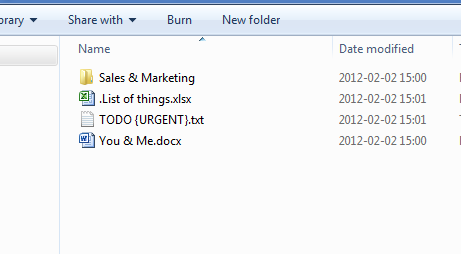
Now, let’s look at how we can automatically replace these characters so that your migration goes through without a hitch.
Step 1 – Options Window
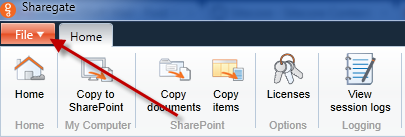
Click on the File menu in the Ribbon.
Then, click the Options button.
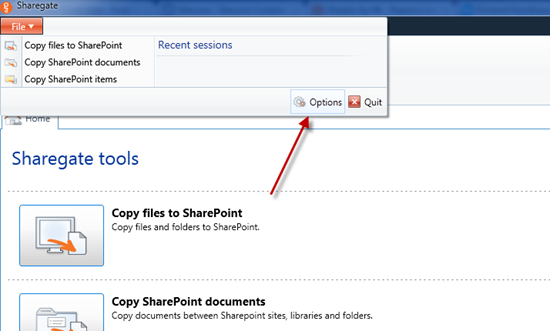
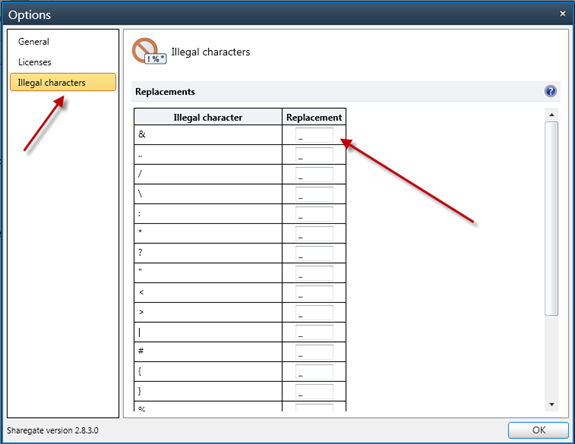
Step 2 – Specify the Replacements for All Unsupported Characters
This section allows you to map unsupported characters with supported characters. The default value is the underscore, but you can tweak and customize it to find a character that better represents your content. It’s that simple.
Step 3 – Bulk import your files and folders to SharePoint
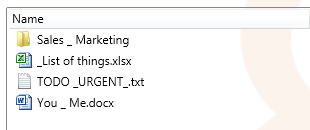
Simply migrate your file shares to SharePoint, and enjoy the result!
Before:
After:
Enjoy a Flawless SharePoint Migration
Automatically replacing unsupported characters is crucial if you want to ensure an error-free migration to SharePoint. Sharegate fully supports it, and also allows you to configure how to replace the illegal characters. Replacing the characters with an underscore is the default, but you can play around with the mapping options to get it just how you like it.